ComSol on Sherlock
Introduction
As of October 2025, earlier versions of ComSol – up to v6.2, might install and run directly on Sherlock. Newer versions, >6.3 require an updated version of glibc, which is an integral part of the base operating system, and so cannot be provided directly on Sherlock, so comsol@6.3: cannot be installed directly on Sherlock. Fortunately, ComSol can be run in a container. As it happens, ComSol can be bundled with VNC – or some other graphics protocol, to also provide a much improved graphical user experience, as compared to X11 forwarding. For more on these topics, see
- VNC: docs/vnc
- Containers: docs/containers
A sample container can be found at:
/home/groups/sh_s-dss/share/sdss/software/comsol/comsol63_ubuntu.sif
Licensing
ComSol is licensed software. There are two types of licenses – “machine-locked” licenses (MLL) reside on or specify a machine; ComSol can be run on the machine that hosts the license file. MLL are restricted to single-machine computations. Floating Network Licenses (FNL) reside on a license server and can be “checked out” by ComSol instances.
Running ComSol
Because ComSol requires an (expensive) license, a general purposes, shared container image or build will likely not be available. Consequently, this documentation may refer generically to a comsol.sif container, that – strictly speaking, does not exist and will need to be created by the user team.
Given a working container, ComSol can be run using the shell, exec, or run (if %runscript is configured) commands. For batched jobs, exec will be preferred; here we will focus on shell implementaitons – for domonstrative purposes. Note that ComSol should always be run from a compute node – never run from a login node.
X11 Forwarding
X11 Forwarding can be used to “forward” X-Windows (Linux GUI windows) from a host server (eg, Sherlock) to a remote client (eg, a user, connecting via ssh). It is a relatively simple means to support graphics and GUI on the HPC (Sherlock). Its main advantages are that it requires no special software on the client side and it is widely available. Its disadvantages are that it tends to be slow (even with a good network connection, but especially with a poor connection) and can be unstable.
To use X11 Forwarding:
- Log on to Sherlock with X11 enabled, eg:
ssh -X sherlock.stanford.edu - After logging into Sherlock, use
sallocto reqeust appropriate resrouces, eg.salloc --partition=serc --cpus-per-task=12 --mem-per-cpu=4g --x11=all - See docs/x11_forwarding docs to test X11 forwarding
- Launch the container, eg.:
apptainer shell comsol.sif - At the prompt, type
comsol
Note that X11 forwarding is naturally supported by Sherlock, but can be unstable and slow to respond, especially over home networks. X11 forwarding can become disconnected, requiring a full log out, log in to resume.
VNC
VNC is a common graphical protocol that can offer a graphical experience that is superior to X11. VNC is not directly supported on Sherlock (circa 2026, CendOS-7 OS), but it can be run using a container (eg. Apptainer). The current, container based, implementation of VNC on Sherlock is – to speakl plainly, a bit clumsy, but it can support a GUI experience that is more performant, stable, and more flexible than X11 forwarding. In short, VNC will – with a bit of understanding on the user’s part, fully support most GUI based software on Sherlock – including ComSol.
Given a VNC-capable container, ComSol can be run over VNC, which typically provides a superior GUI experience, as compared to X11 forwarding. For more information on VNC, see VNC on Sherlock
Log onto Sherlock
- Log onto Sherlock, eg.
ssh -X {SUNetID}@sherlock.stanford.edu - After logging into Sherlock, use
sallocto reqeust appropriate resrouces, eg.salloc --partition=serc --cpus-per-task=12 --mem-per-cpu=4g - Note the name of the compute node assigned to the job, eg in the prompt
[{SUNET}sh04-05n29 vnc-apptainers] (job 8542099) $ - In a separate terminal, SSH and port forward the VNC port 5901 from your local machine to the compute node,
ssh -L5901:sh04-05n29:5901 sherlock.stanford.edu - If port forwarding fails due to a “port not available error”, simply forward a different port, eg.
ssh -L5902:sh04-05n29:5901 sherlock.stanford.edu.
Start the Contianer
- Start the ComSol container,
apptainer shell comsol.sif - Check to see if any VNC desktops are running:
Apptainer> vncserver -list TurboVNC sessions: X DISPLAY # PROCESS ID NOVNC PROCESS ID Apptainer> - If there are any desktops running, “kill” them – they are probably left over from a previous VNC session, eg.
vncserver -kill :1 - Start VNC Server in the container:
Apptainer> vncserver Desktop 'TurboVNC: sh04-05n29.int:1 (myoder96)' started on display sh04-05n29.int:1 Starting applications specified in /opt/TurboVNC/bin/xstartup.turbovnc Log file is /home/users/myoder96/.vnc/sh04-05n29.int:1.log Apptainer> vncserver -list TurboVNC sessions: X DISPLAY # PROCESS ID NOVNC PROCESS ID :1 10005 Apptainer> - VNC Server is now running in your container; the VNC port – default is
5901, should be exposed to the compute node. - Connect a VNC client (eg TurboVNC Viewer, see VNC on Sherlock) to the VNC Server. Note that you are using port forwarding, so you connect to the forwarded port on your
localhost, which is forwarded to the compute node and container.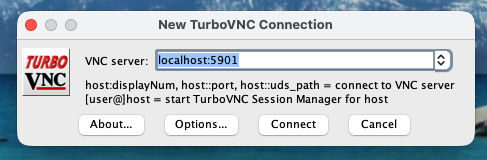
- You may be asked to provide or set a password. This is most likely user-defined and stored in your
~/.vncdirectory. If you don’t know the password, delete this directory~/.vnc/passwd, and you should be prompted to provide a new password. - A GUI desktop should appear. Launch the
terminalapplication and typecomsolat the prompt.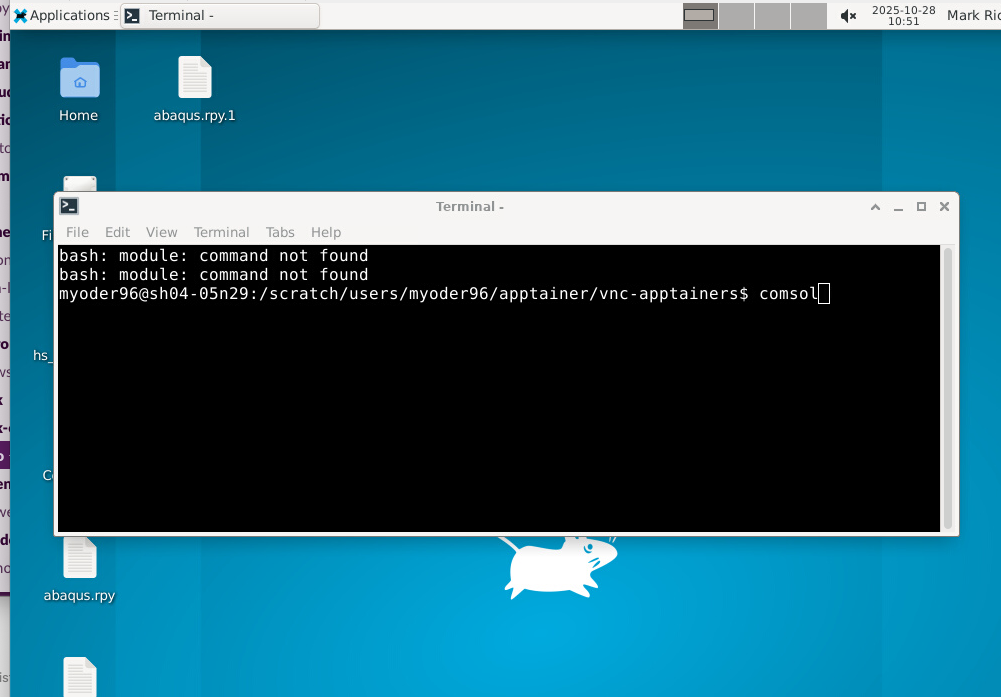
- You should see a spash-screen,

- If your license is current, ComSol will launch successfully. If not, you will be prompted to update your license information.
ComSol Batch mode
The best way to take full advantage of HPC resources is to run jobs in “batch” mode, which does not use the GUI, can be submitted to the (SLURM) scheduler, and can run unattended on large resource allocations, for up to 7 days (between checkpoints) on Sherlock. The syntax for running in batch jobs, using the container is like:
apptainer exec comsol.sif comsol batch -inputfile <path> -outputfile <path> -study std1
A simple,
apptainer exec comsol.sif comsol batch --help
Will show a full(ish) list of options available to both comsol and comsol batch. A Floating Network License (FNL) should support MPI jobs. A simple job script might look like,
#!/bin/bash
#
#SBATCH --job-name=comsol_batch
#SBATCH --output=comsol_batch_%j.out
#SBATCH --partition=serc
#SBATCH --ntasks=8
##SBATCH --cpus-per-task=8
#SBATCH --mem-per-cpu=6g
#
set ulimit -s unlimited
module purge
module load openmpi/5.0.5
#
# an MPI job (ntasks > 1) looks like:
srun apptainer exec comsol.sif comsol batch -inputfile my_comsol_script.txt -outputfile comsol_out.out
#
# a multi-threaded, single task looks something like
apptainer exec comsol.sif comsol batch -inputfile my_comsol_script.txt -outputfile comsol_out.out
#
This example is meant only to illustrate some of the basic concepts; it is not remotely cut-paste ready. In order for the container to run correctly in MPI mode, for example, it will be necessary to sufficiently match the host (Sherlock) MPI with the MPI inside the container.
Appendices
Apptainer Definition
The following definition file will build an Apptainer container that includes ComSol and VNC. Note that this is not a “plug-n-play” container script. In particular, a configuration file setupconfig.ini will need to be constructed – or more correctly, taken from the installation media and modified to reflect intallation preferences and licensing. Note also that this script suggests using the “bind” optoin to map the ComSol source into the container, --bind $(cd ..;pwd)/COMSOL63_lnx://COMSOL_build, rather than copying those files – eg, in the %files section.
Bootstrap: docker
From: ubuntu:latest

# NOTE: as of 2025-08-25, DSSS floating license only supports comsol@:6.2; @6.3 is not (yet) supported.
# About this .def:
#  To build the container, either use the %file section to copy the source files (Comsol_lnx) and config into the container (then delete them...)
#  or (better!) --bind {host_path}:{container_path} .
#  The container side is meant to be generic, so map --bind {your_src_path}/COMSOL_build --bind {path_to_config.ini}:/COMSOL_build/setupconfig.ini
#
%setup
    mkdir ${APPTAINER_ROOTFS}/COMSOL_build
    mkdir ${APPTAINER_ROOTFS}/MATLAB
    mkdir ${APPTAINER_ROOTFS}/COMSOL

%post
    apt-get -y update
    #apt-get -y install cowsay lolcat
    #
    apt-get -y install csh
    apt-get -y install build-essential
    apt-get -y install libmpfr-dev libgmp3-dev libmpc-dev
    apt-get -y install wget unzip
    apt-get -y install python3
    apt-get -y install vim nano
    apt-get -y install gcc gfortran
    #
    #apt-get -y install xorg openbox
    apt-get -y install x11-apps
    #apt-get -y install  libx11-dev
    apt-get -y install libgtk-4-dev
    apt-get -y install libxrender1 libxtst6 libxi6
    apt-get -y install libswt-gtk-4-java
    #
    wget https://www.mathworks.com/mpm/glnxa64/mpm
    chmod +x mpm
    ./mpm install --release=R2025a --destination=/MATLAB --products=MATLAB
    mkdir /MATLAB/licenses
    ML_LIC="/MATLAB/licenses/licenses.lic"
    printf "SERVER srcc-license-srcf.stanford.edu 42010A000002 27015\n">${ML_LIC}
    printf "USE_SERVER\n">>${ML_LIC}
    printf "SERVER srcc-license-rcf.stanford.edu 42010A000002 27015\n">>${ML_LIC}
    printf "USE_SERVER\n">>${ML_LIC}
    #
    printf "LICENSES:]n"
    cat ${ML_LIC}
    #
    # NOTE: The comsol source needs to be copied or --bind -ed into the container. If you
    #  use the %files section to copy the source data, you should delete it from the container when
    #  the build completes.
    # use: --bind {path_to_Comsol_lnx}:/COMSOL_build
    # NOTE: mkdir this in %setup
    cd /COMSOL_build
    chmod +x setup
    #
    # Setup configureation is defined in a setupconfig-like file on the host machine. It can be copied
    #  here (in %post), in %files, or mapped in using --bind . Note that for machine-bound licenses,
    #  the license code/data are written into setupconfig.ini . To update the license, you can either
    #  update that file and rebuild the container or presumabley overwrite an Env. variable and/or
    #  license file using --bind.
    #
    # bind the correct setupconfig to /COMSOL_build/setupconfig.ini
    #  eg, --bind $(pwd)/setupconfig_63_apptainer.ini /COMSOL_build/setupconfig.ini
    ./setup -s setupconfig.ini
    #
    echo "ComSol setup complete..."
    #
    # Now, set up VNC:
    apt-get install -y --no-install-recommends \
        xfce4 \
        xfce4-goodies \
        dbus-x11 \
        xterm
    # Set xfce4-terminal as default terminal emulator:
    update-alternatives --set x-terminal-emulator /usr/bin/xfce4-terminal.wrapper

    # TurboVNC:
    apt-get -y install wget gpg
    apt-get -y install lsb-release

    wget -q -O- "https://packagecloud.io/dcommander/turbovnc/gpgkey" | gpg --dearmor > "/etc/apt/trusted.gpg.d/TurboVNC.gpg"
    wget -q -O "/etc/apt/sources.list.d/TurboVNC.list" "https://raw.githubusercontent.com/TurboVNC/repo/main/TurboVNC.list"

    wget -q -O- https://packagecloud.io/dcommander/libjpeg-turbo/gpgkey | gpg --dearmor >/etc/apt/trusted.gpg.d/libjpeg-turbo.gpg
    wget -q -O "/etc/apt/sources.list.d/libjpeg-turbo.list" "https://raw.githubusercontent.com/libjpeg-turbo/repo/main/libjpeg-turbo.list"

    wget -q -O- https://packagecloud.io/dcommander/virtualgl/gpgkey | gpg --dearmor >/etc/apt/trusted.gpg.d/VirtualGL.gpg
    wget -q -O "/etc/apt/sources.list.d/VirtualGL.list" "https://raw.githubusercontent.com/VirtualGL/repo/main/VirtualGL.list"

    apt-get update
    apt-get -y install turbovnc
    apt-get -y install virtualgl libjpeg-turbo-official


    # Set VNC password (replace 'your_vnc_password' with a strong password)
    export PATH=/opt/TurboVNC/bin:${PATH}
    mkdir -p /root/.vnc
    echo "monkey018" | vncpasswd -f > /root/.vnc/passwd
    chmod 600 /root/.vnc/passwd

    # Configure xstartup script for XFCE
    echo "#!/bin/bash" > /root/.vnc/xstartup
    echo "unset SESSION_MANAGER" >> /root/.vnc/xstartup
    echo "unset DBUS_SESSION_BUS_ADDRESS" >> /root/.vnc/xstartup
    echo "[ -x /etc/vnc/xstartup ] && exec /etc/vnc/xstartup" >> /root/.vnc/xstartup
    echo "[ -r \$HOME/.Xresources ] && xrdb \$HOME/.Xresources" >> /root/.vnc/xstartup
    echo "startxfce4 &" >> /root/.vnc/xstartup
    chmod +x /root/.vnc/xstartup

    apt-get clean
    #
%environment
    export LC_ALL=C
    export PATH=/usr/games:$PATH
    #
    export EDITOR=vim
    #
    # Floating Network License (FNL) would be set like this:
    #export MLM_LICENSE_FILE="27015@srcc-license-srcf.stanford.edu:27015@srcc-license-rcf.stanford.edu"
    export PATH=/COMSOL/bin:/MATLAB/bin:$PATH
    export PATH=/opt/TurboVNC/bin:${PATH}

%files
    # --bind the src dir, don not copy it. But here is what you would bind...
    #../COMSOL63_lnx /COMSOL_build
    #./setupconfig_apptainer.ini /COMSOL_build/
%runscript
    date | cowsay | lolcat